Overview
In this recipe you’ll cook up a custom block that toggles dark and light mode! Using the Interactivity API, this block lets users switch color schemes effortlessly, with their preference saved to user meta if they’re logged in or a cookie if they’re not—just like remembering their favorite dish. Ready to serve up a better user experience? Let’s get cooking! 🌗👨🍳
Setup
You can choose to either use the repository which provides a development environment or to just download the standalone plugin
Standalone
Instructions
Run the following command in a terminal of your choice from inside the plugins directory of your local WordPress installation.
npx @wordpress/create-block@latest dark-light-mode --template @block-developer-cookbook/dark-light-modeOnce the scaffold has completed completed, start the build process from inside the newly created plugin
cd dark-light-mode && npm run startFinally, make sure to activate the plugin.
Repository
Instructions
Checkout the repository (skip this step if already done)
git clone git@github.com:ryanwelcher/block-developer-cookbook.gitInstall the dependencies
npm installStart the development environment (make sure you have Docker installed )
npm run env startRun the following script from the root of the repository
npm run prep:dark-light-modeOnce the scaffold has completed completed, start the build process from inside the newly created plugin
cd plugins/dark-light-mode && npm run startStep 1 – Theme setup
Setting up dark and light mode for a theme can be done in a number of ways. For this recipe you’re going to leverge the color-scheme CSS property. With this property, the color scheme is automatically detected from the browser which is going to save some setup. The only thing you’ll need is a theme that is set up with light and dark colors.
The repository you downloaded comes with a theme called tt4-dark-mode that was created by Justin Tadlock and is a child theme of the twentytwentyfour theme.
Please activate the TT4 Dark Theme to get started.
Once the theme is active, open the dark-light-mode.php file:
<?php
/**
 * Plugin Name:       Dark Light Mode
 * Description:       Create an interactive block that allows users to toggle between dark and light color schemes.
 * Requires at least: 6.1
 * Requires PHP:      7.0
 * Version:           1.0.0
 * Author:            The WordPress Contributors
 * License:           GPL-2.0-or-later
 * License URI:       https://www.gnu.org/licenses/gpl-2.0.html
 * Text Domain:       dark-light-mode
 *
 * @package block-developers-cookbook
 */

namespace BlockDevelopersCookbook;

/**
 * Registers the block using the metadata loaded from the `block.json` file.
 * Behind the scenes, it registers also all assets so they can be enqueued
 * through the block editor in the corresponding context.
 *
 * @see https://developer.wordpress.org/reference/functions/register_block_type/
 */
function create_block_dark_light_mode_block_init() {
    register_block_type( __DIR__ . '/build' );
}
add_action( 'init', __NAMESPACE__ . '\create_block_dark_light_mode_block_init' );Before the theme can display the dark or light color scheme based on the browser setting, you need to add the color-scheme property to the :root level.
Add the highlighted code below to dark-light-mode.php:
<?php
/**
 * Plugin Name:       Dark Light Mode
 * Description:       Create an interactive block that allows users to toggle between dark and light color schemes.
 * Requires at least: 6.1
 * Requires PHP:      7.0
 * Version:           1.0.0
 * Author:            The WordPress Contributors
 * License:           GPL-2.0-or-later
 * License URI:       https://www.gnu.org/licenses/gpl-2.0.html
 * Text Domain:       dark-light-mode
 *
 * @package block-developers-cookbook
 */

namespace BlockDevelopersCookbook;

/**
 * Registers the block using the metadata loaded from the `block.json` file.
 * Behind the scenes, it registers also all assets so they can be enqueued
 * through the block editor in the corresponding context.
 *
 * @see https://developer.wordpress.org/reference/functions/register_block_type/
 */
function create_block_dark_light_mode_block_init() {
    register_block_type( __DIR__ . '/build' );
}
add_action( 'init', __NAMESPACE__ . '\create_block_dark_light_mode_block_init' );
/**
* Adds a CSS custom property to :root that controls the color-scheme
* preference for the entire document. This allows the browser to adjust
* default colors and form controls based on the user's preference.
*/
function add_color_scheme_styles() {
// Output the CSS inline.
?>
<style>
:root {
color-scheme: light dark;
}
</style>
<?php
}
add_action( 'wp_head', __NAMESPACE__ . '\add_color_scheme_styles' );This hook will add the color-scheme property at the root level.
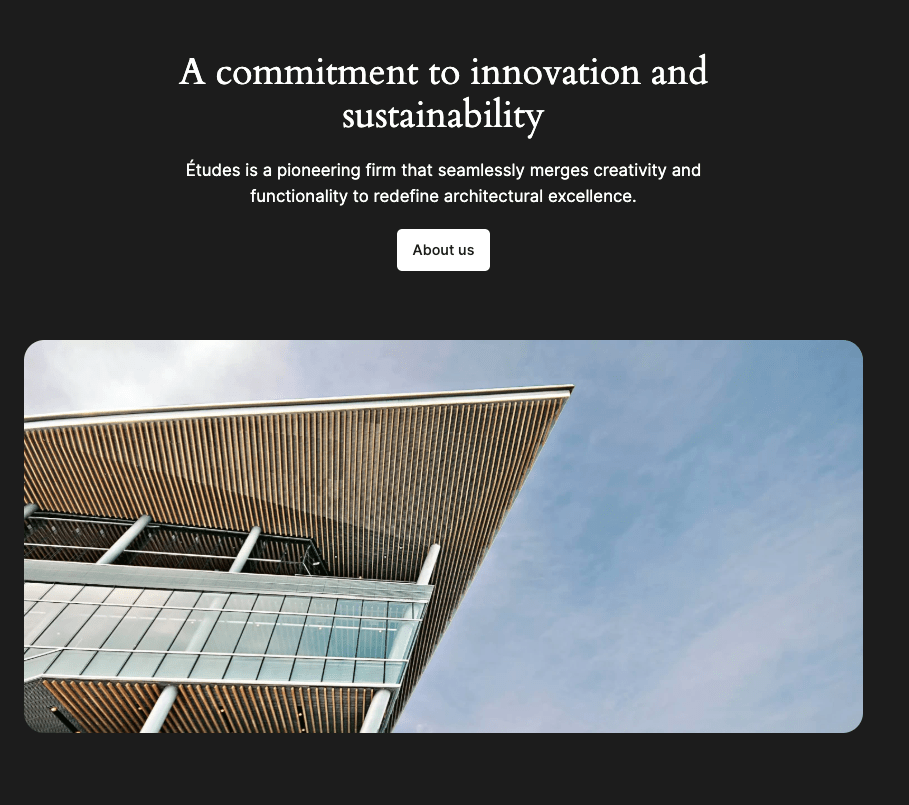
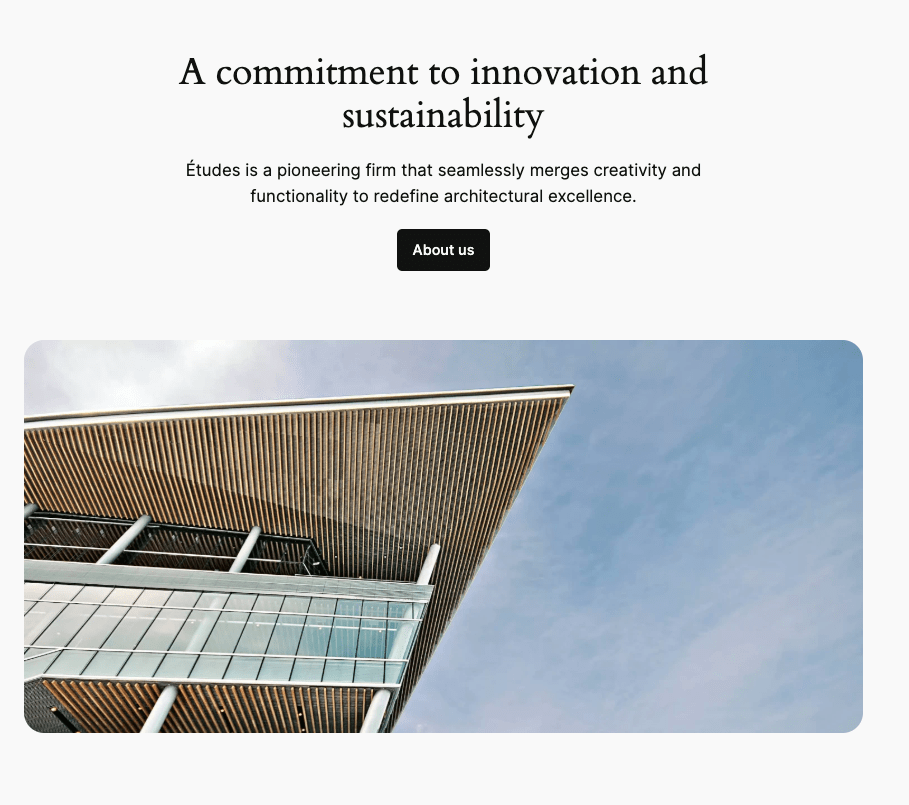
Refresh the browser and the theme should display the correct color scheme based on your preferences. Change the setting and the browser will automatically adjust!
Step 2 – Block setup
The block you’re going to build will use the Interactivity API (IAPI) to manage it’s state and update the color scheme as needed. Open the block.json file to have a look at how that is set up
There are two important properties that are required in order for a block to use the IAPI: supports.interactive and viewScriptModule
{
"$schema": "https://schemas.wp.org/trunk/block.json",
"apiVersion": 3,
"name": "block-developers-cookbook/dark-light-mode",
"version": "1.0.0",
"title": "Dark Light Mode",
"category": "block-developer-cookbook",
"description": "Create an interactive block that allows users to toggle between dark and light color schemes.",
"example": {},
"supports": {
"interactive": true
},
"textdomain": "dark-light-mode",
"editorScript": "file:./index.js",
"style": "file:./style-index.css",
"render": "file:./render.php",
"viewScriptModule": "file:./view.js"
}supports.interactive needs to be set to true to enable the IAPI for this block.
The viewScriptModule property tells the block where to find the JavaScript that leverages the IAPI. It’s important to understand that the contents of that file are going to be built to be loaded as an ES module and need to be enqueued in a different non-module files are enqueued.
In the package.json file, you need to tell the @wordpress/scripts package that it should build the viewScriptModule as a module. This is done with the --experimental-modules flag. This has been added for you as part of the scaffolded files.
{
"name": "dark-light-block",
"version": "0.1.0",
"author": "The WordPress Contributors",
"license": "GPL-2.0-or-later",
"main": "build/index.js",
"scripts": {
"build": "wp-scripts build --experimental-modules",
"format": "wp-scripts format",
"lint:css": "wp-scripts lint-style",
"lint:js": "wp-scripts lint-js",
"packages-update": "wp-scripts packages-update",
"plugin-zip": "wp-scripts plugin-zip",
"start": "wp-scripts start --experimental-modules"
},
"prettier": "@wordpress/prettier-config",
"devDependencies": {
"@wordpress/scripts": "^30.11.0"
}
}
Step 3 – The block markup
As part of the scaffold, the basic markup and styles for the block have been provided. You’ll be updating this is future steps but take a look for reference.
/**
* WordPress Dependencies
*/
import { useBlockProps } from '@wordpress/block-editor';
/**
* The edit function describes the structure of your block in the context of the
* editor. This represents what the editor will render when the block is used.
*
* @see https://developer.wordpress.org/block-editor/reference-guides/block-api/block-edit-save/#edit
*
* @return {Element} Element to render.
*/
export default function Edit() {
return (
<p { ...useBlockProps() }>
<button className="toggle" type="button">
<span className="toggle__display" hidden></span>
</button>
</p>
);
}<?php
/**
* Render template for the Dark Light Mode Block.
*
* @package block-developers-cookbook
*/
namespace BlockDevelopersCookbook;
?>
<div <?php echo wp_kses_data( get_block_wrapper_attributes() ); ?>>
<button class="toggle" type="button">
<span class="toggle__display" hidden></span>
</button>
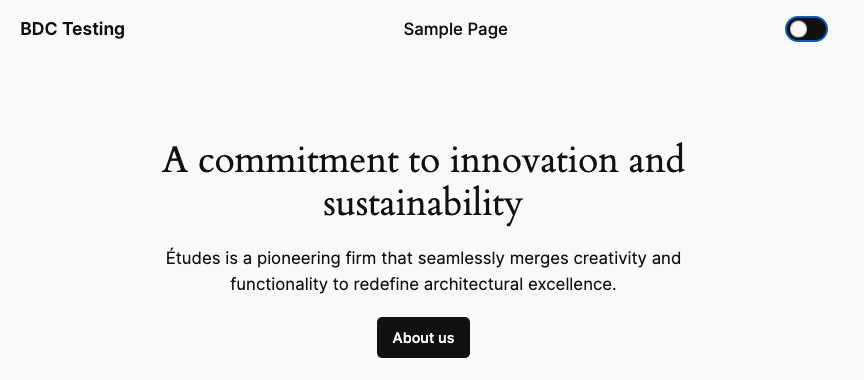
</div>Insert the an instance of the block into the site header to see how it looks!

Step 3 – Adding the Interactivity API
Now that you have the basic block in place, it’s time to adding the interactivity! This is done by creating a new store for our block. Open the view.js file and have a look at what has been defined there.
/**
* WordPress dependencies
*/
import { store } from '@wordpress/interactivity';
store( 'dark-light-mode', {
state: {},
actions: {},
callbacks: {},
} );You are creating a new store called dark-light-mode. There are three properties defined. state is used to define and retrieve the information (or state) that is in the store. actions is used to contain callback functions that are user initiated events like a button click, and callback are used to callback functions that are not initiated by the user such as when the component loads. The distinction between actions and callbacks is purely cosmetic but makes it easer to organize functions. It’s important to note that while these properties can be called anything, this is the best practice for naming them.
Now that store is defined, we need to connect it to our block This is done by adding the data-wp-interactive directive to the markup in the render.php file.
There are a number of directives available for Interactivity API. You can review them all at the official docs
<?php
/**
* Render template for the Dark Light Mode Block.
*
* @package block-developers-cookbook
*/
namespace BlockDevelopersCookbook;
?>
<div <?php echo wp_kses_data( get_block_wrapper_attributes() ); ?>>
<button
data-wp-interactive="dark-light-mode"
class="toggle"
type="button"
>
<span class="toggle__display" hidden>
<?php // The toggle display element is hidden and managed by CSS/JavaScript. ?>
</span>
</button>
</div>The value passed to data-wp-interactive must match the name of the store defined in the view.js file.
You have now connected the store to your block, but it’s not doing anything.
Add two more directives to button:
<?php
/**
* Render template for the Dark Light Mode Block.
*
* @package block-developers-cookbook
*/
namespace BlockDevelopersCookbook;
?>
<div <?php echo wp_kses_data( get_block_wrapper_attributes() ); ?>>
<button
data-wp-interactive="dark-light-mode"
data-wp-bind--aria-pressed="state.darkMode"
data-wp-on--click="actions.toggleMode"
class="toggle"
type="button"
>
<span class="toggle__display" hidden>
<?php // The toggle display element is hidden and managed by CSS/JavaScript. ?>
</span>
</button>
</div>
The first item, data-wp-bind--aria-pressed, uses the data-wp-bind directive to connect the aria-pressed attribute to the value of a darkMode variable that is stored in the state.
The second change, data-wp-on--click uses the data-wp-on directive to bind the click event of the button to a toggleMode callback stored in the actions property of the store.
Jump over to view.js and add the following code
/**
* WordPress dependencies
*/
import { store } from '@wordpress/interactivity';
const { state } = store( 'dark-light-mode', {
state: {},
actions: {
/**
* Toggles between dark and light mode.
*
* @return {void}
*/
toggleMode() {
state.darkMode = ! state.darkMode;
},
},
callbacks: {},
} );The block should now toggle correctly when clicked. This is because toggleMode changes the value of state.darkMode which is in turn bound to the aria-pressed attribute of the button. When that is changed, the CSS styles the button accordingly.
You’ve probably noticed that the theme doesn’t change colors, this is expected at this point. You’re going to fix that now!
First, add a new directive to the render.php file:
<?php
/**
* Render template for the Dark Light Mode Block.
*
* @package block-developers-cookbook
*/
namespace BlockDevelopersCookbook;
?>
<div <?php echo wp_kses_data( get_block_wrapper_attributes() ); ?>>
<button
data-wp-interactive="dark-light-mode"
data-wp-bind--aria-pressed="state.darkMode"
data-wp-on--click="actions.toggleMode"
data-wp-watch="callbacks.updateColorScheme"
class="toggle"
type="button"
>
<span class="toggle__display" hidden>
<?php // The toggle display element is hidden and managed by CSS/JavaScript. ?>
</span>
</button>
</div>This directive is the equivalent of a useEffect in a React application. It will watch the state and run the callback when something changes.
Next, add the callback to view.js
/**
* WordPress dependencies
*/
import { store } from '@wordpress/interactivity';
const { state } = store( 'dark-light-mode', {
state: {},
actions: {
/**
* Toggles between dark and light mode.
*
* @return {void}
*/
toggleMode() {
state.darkMode = ! state.darkMode;
},
},
callbacks: {
/**
* Updates the root element's color scheme CSS property
* when the dark mode state changes.
* Skips if darkMode state is not yet initialized.
*
* @return {void}
*/
updateColorScheme() {
// Dark mode will be undefined if there is not cookie or user meta.
if ( 'undefined' === typeof state.darkMode ) {
return;
}
const root = document.querySelector( ':root' );
root.style.setProperty(
'color-scheme',
state.darkMode ? 'dark' : 'light'
);
},
},
} );
This new callback is going to run whenever we change the darkMode variable in state and change the color-scheme property to either dark or light.
Try it out and you might notice that the first click on the button moves the toggle but doesn’t change the colors. This is because before the first click state.darkMode is undefined.
Add another directive and callback
<?php
/**
* Render template for the Dark Light Mode Block.
*
* @package block-developers-cookbook
*/
namespace BlockDevelopersCookbook;
?>
<div <?php echo wp_kses_data( get_block_wrapper_attributes() ); ?>>
<button
data-wp-interactive="dark-light-mode"
data-wp-bind--aria-pressed="state.darkMode"
data-wp-on--click="actions.toggleMode"
data-wp-watch="callbacks.updateColorScheme"
data-wp-init="callbacks.initToggle"
class="toggle"
type="button"
>
<span class="toggle__display" hidden>
<?php // The toggle display element is hidden and managed by CSS/JavaScript. ?>
</span>
</button>
</div>
The data-wp-init is only run once when the block is first rendered.
/**
* WordPress dependencies
*/
import { store } from '@wordpress/interactivity';
const { state } = store( 'dark-light-mode', {
state: {},
actions: {
/**
* Toggles between dark and light mode.
*
* @return {void}
*/
toggleMode() {
state.darkMode = ! state.darkMode;
},
},
callbacks: {
/**
* Updates the root element's color scheme CSS property
* when the dark mode state changes.
* Skips if darkMode state is not yet initialized.
*
* @return {void}
*/
updateColorScheme() {
// Dark mode will be undefined if there is not cookie or user meta.
if ( 'undefined' === typeof state.darkMode ) {
return;
}
const root = document.querySelector( ':root' );
root.style.setProperty(
'color-scheme',
state.darkMode ? 'dark' : 'light'
);
},
initToggle() {
state.darkMode =
window.matchMedia &&
window.matchMedia( '(prefers-color-scheme: dark)' ).matches;
},
},
} );Now when the toggle button is first rendered, it will check the browser setting to see if the preference prefers dark or light and set state.darkMode accordingly.
Step 3 – Persisting the setting
At this point, you have a working toggle that changes the colors.. until you refresh the page or navigate to another one!
In order to persist the changes you will need to store it somewhere. There are number ways you can do that but for this case, your going to want to have it available to PHP so you can output it in the wp_head hook you defined earlier. We also want to account for the fact that some users will be logged in and others won’t be when visiting the site.
For logged in users, you can user the REST API to save some custom user meta. Let’s set that up now.
First, add the following code to register the custom user meta:
<?php
/**
 * Plugin Name:       Dark Light Mode
 * Description:       Create an interactive block that allows users to toggle between dark and light color schemes.
 * Requires at least: 6.1
 * Requires PHP:      7.0
 * Version:           1.0.0
 * Author:            The WordPress Contributors
 * License:           GPL-2.0-or-later
 * License URI:       https://www.gnu.org/licenses/gpl-2.0.html
 * Text Domain:       dark-light-mode
 *
 * @package block-developers-cookbook
 */

namespace BlockDevelopersCookbook;

/**
 * Registers the block using the metadata loaded from the `block.json` file.
 * Behind the scenes, it registers also all assets so they can be enqueued
 * through the block editor in the corresponding context.
 *
 * @see https://developer.wordpress.org/reference/functions/register_block_type/
 */
function create_block_dark_light_mode_block_init() {
	register_block_type( __DIR__ . '/build' );
}
add_action( 'init', __NAMESPACE__ . '\create_block_dark_light_mode_block_init' );

/**
 * Adds a CSS custom property to :root that controls the color-scheme
 * preference for the entire document. This allows the browser to adjust
 * default colors and form controls based on the user's preference.
 */
function add_color_scheme_styles() {
	// Output the CSS inline.
	?>
	<style>
		:root {
			color-scheme: light dark;
		}
	</style>
	<?php
}
add_action( 'wp_head', __NAMESPACE__ . '\add_color_scheme_styles' );
/**
* Registers user meta for color scheme.
*/
function register_color_scheme_meta() {
register_meta(
'user',
'color-scheme',
array(
'show_in_rest' => true,
'type' => 'string',
'single' => true,
),
);
}
add_action( 'init', __NAMESPACE__ . '\register_color_scheme_meta' );Next, add this helper function that will be used to retrieve the preference or provide a default value and update the add_color_scheme_styles callback to retrieve preference.
<?php
/**
 * Plugin Name:       Dark Light Mode
 * Description:       Create an interactive block that allows users to toggle between dark and light color schemes.
 * Requires at least: 6.1
 * Requires PHP:      7.0
 * Version:           1.0.0
 * Author:            The WordPress Contributors
 * License:           GPL-2.0-or-later
 * License URI:       https://www.gnu.org/licenses/gpl-2.0.html
 * Text Domain:       dark-light-mode
 *
 * @package block-developers-cookbook
 */

namespace BlockDevelopersCookbook;

/**
 * Registers the block using the metadata loaded from the `block.json` file.
 * Behind the scenes, it registers also all assets so they can be enqueued
 * through the block editor in the corresponding context.
 *
 * @see https://developer.wordpress.org/reference/functions/register_block_type/
 */
function create_block_dark_light_mode_block_init() {
	register_block_type( __DIR__ . '/build' );
}
add_action( 'init', __NAMESPACE__ . '\create_block_dark_light_mode_block_init' );

/**
 * Gets the current color scheme preference from user meta.
 *
 * Priority order:
 * 1. For logged-in users: Uses user meta preference
 * 2. Fallback: Returns 'light dark' to support both modes
 *
 * @return string The current color scheme setting.
 */
function get_color_scheme() {
	// For logged-in users, prefer their saved preference from user meta.
	$user_meta    = get_user_meta( get_current_user_id(), 'color-scheme', true );
	$color_scheme = is_user_logged_in() && ! empty( $user_meta ) ? $user_meta : 'light dark';
	return $color_scheme;
}


/**
 * Adds a CSS custom property to :root that controls the color-scheme
 * preference for the entire document. This allows the browser to adjust
 * default colors and form controls based on the user's preference.
 */
function add_color_scheme_styles() {
	// Get user's color scheme preference.
	$color_scheme = get_color_scheme();
	// Output the CSS inline.
	?>
	<style>
		:root {
			color-scheme: <?php echo esc_html( $color_scheme ); ?>;
		}
	</style>
	<?php
}
add_action( 'wp_head', __NAMESPACE__ . '\add_color_scheme_styles' );

/**
 * Registers user meta for color scheme.
 */
function register_color_scheme_meta() {
	register_meta(
		'user',
		'color-scheme',
		array(
			'show_in_rest' => true,
			'type'         => 'string',
			'single'       => true,
		),
	);
}
add_action( 'init', __NAMESPACE__ . '\register_color_scheme_meta' );
You’re now set up to retrieve the user setting.
Update the view.js file to set the user meta
/**
 * WordPress dependencies
 */
import { store } from '@wordpress/interactivity';

const { state } = store( 'dark-light-mode', {
	state: {
		/**
		 * Computed property to check if user is logged in
		 * based on userID being greater than 0.
		 *
		 * @return {boolean} True if user is logged in, false otherwise.
		 */
		get isLoggedIn() {
			return state.userID > 0;
		},
	},
	actions: {
		/**
		 * Toggles between dark and light mode.
		 *
		 * @return {void}
		 */
		toggleMode() {
			state.darkMode = ! state.darkMode;
			if ( state.isLoggedIn ) {
				// Save preference to user meta for logged-in users
				wp.apiFetch( {
					path: `/wp/v2/users/${ state.userID }`,
					method: 'POST',
					data: {
						meta: {
							'color-scheme': state.darkMode ? 'dark' : 'light',
						},
					},
				} );
			}
		},
	},
	callbacks: {
		/**
		 * Updates the root element's color scheme CSS property
		 * when the dark mode state changes.
		 * Skips if darkMode state is not yet initialized.
		 *
		 * @return {void}
		 */
		updateColorScheme() {
			// Dark mode will be undefined if there is not cookie or user meta.
			if ( 'undefined' === typeof state.darkMode ) {
				return;
			}
			const root = document.querySelector( ':root' );
			root.style.setProperty(
				'color-scheme',
				state.darkMode ? 'dark' : 'light'
			);
		},
		initToggle() {
			state.darkMode =
				window.matchMedia &&
				window.matchMedia( '(prefers-color-scheme: dark)' ).matches;
		},
	},
} );
Before we can run this code, there are a couple of new items that need to be added to the state of your store: state.isLoggedIn and state.userID.
Both of these values will need to come from PHP so in order for use to use them we need to populate them in the render.php
<?php
/**
* Render template for the Dark Light Mode Block.
*
* @package block-developers-cookbook
*/
namespace BlockDevelopersCookbook;
// Getting the initial color scheme from the cookie.
// This function (assumed to be defined elsewhere) retrieves the user's current preference.
$color_scheme = get_color_scheme();
// Setup the initial state for the WordPress interactivity store.
// This state will be available to the JavaScript front-end code.
wp_interactivity_state(
'dark-light-mode',
array(
'userID' => get_current_user_id(), // Get the current user's ID or 0 for non-logged-in users.
'colorScheme' => $color_scheme, // The current color scheme preference ('light' or 'dark').
)
);
?>
<div <?php echo wp_kses_data( get_block_wrapper_attributes() ); ?>>
<button
data-wp-interactive="dark-light-mode"
data-wp-bind--aria-pressed="state.darkMode"
data-wp-on--click="actions.toggleMode"
data-wp-watch="callbacks.updateColorScheme"
data-wp-init="callbacks.initToggle"
class="toggle"
type="button"
>
<span class="toggle__display" hidden>
<?php // The toggle display element is hidden and managed by CSS/JavaScript. ?>
</span>
</button>
</div>
First, the code calls the helper function get_color_scheme to retrieve the user meta. Then the wp_interactivity_state function is called with the name of the store and an array of items to be used as the default state values for this store.
Next, we need to add a new getter function to the store called isLoggedIn. This will return a new value based on the another state variable which is referred to as derived state.
/**
 * WordPress dependencies
 */
import { store } from '@wordpress/interactivity';

const { state } = store( 'dark-light-mode', {
	state: {
		/**
		 * Computed property to check if user is logged in
		 * based on userID being greater than 0.
		 *
		 * @return {boolean} True if user is logged in, false otherwise.
		 */
		get isLoggedIn() {
			return state.userID > 0;
		},
	},
	actions: {
		/**
		 * Toggles between dark and light mode.
		 *
		 * @return {void}
		 */
		toggleMode() {
			state.darkMode = ! state.darkMode;
			if ( state.isLoggedIn ) {
				// Save preference to user meta for logged-in users
				wp.apiFetch( {
					path: `/wp/v2/users/${ state.userID }`,
					method: 'POST',
					data: {
						meta: {
							'color-scheme': state.darkMode ? 'dark' : 'light',
						},
					},
				} );
			}
		},
	},
	callbacks: {
		/**
		 * Updates the root element's color scheme CSS property
		 * when the dark mode state changes.
		 * Skips if darkMode state is not yet initialized.
		 *
		 * @return {void}
		 */
		updateColorScheme() {
			// Dark mode will be undefined if there is not cookie or user meta.
			if ( 'undefined' === typeof state.darkMode ) {
				return;
			}
			const root = document.querySelector( ':root' );
			root.style.setProperty(
				'color-scheme',
				state.darkMode ? 'dark' : 'light'
			);
		},
		initToggle() {
			state.darkMode =
				window.matchMedia &&
				window.matchMedia( '(prefers-color-scheme: dark)' ).matches;
		},
	},
} );
There is one last step that you need to take before this code will work. You are using the apiFetch package to make the request and because that package is not compatible with ES modules, you have to call it by access the global wp variable. However, it will not be enqueued by default so you need to manually enqueue it in the render.php file
<?php
/**
 * Render template for the Dark Light Mode Block.
 *
 * @package block-developers-cookbook
 */

namespace BlockDevelopersCookbook;

// Enqueue the WordPress API fetch script for making HTTP requests to the WordPress REST API.
wp_enqueue_script( 'wp-api-fetch' );

// Getting the initial color scheme from the cookie.
// This function (assumed to be defined elsewhere) retrieves the user's current preference.
$color_scheme = get_color_scheme();

// Setup the initial state for the WordPress interactivity store.
// This state will be available to the JavaScript front-end code.
wp_interactivity_state(
	'dark-light-mode',
	array(
		'userID'      => get_current_user_id(), // Get the current user's ID or 0 for non-logged-in users.
		'colorScheme' => $color_scheme,         // The current color scheme preference ('light' or 'dark').
	)
);
?>
<div <?php echo wp_kses_data( get_block_wrapper_attributes() ); ?>>
<button
	data-wp-interactive="dark-light-mode"
	data-wp-bind--aria-pressed="state.darkMode"
	data-wp-on--click="actions.toggleMode"
	data-wp-watch="callbacks.updateColorScheme"
	data-wp-init="callbacks.initToggle"
	class="toggle"
	type="button"
>
	<span class="toggle__display" hidden>
		<?php // The toggle display element is hidden and managed by CSS/JavaScript. ?>
	</span>
</button>
</div>
Now that there is a value that is being stored, you don’t want the setting from the browser to override that setting.
Change the initToggle to check state.colorScheme if the user is logged in or fallback to the browser setting if not.
/**
 * WordPress dependencies
 */
import { store } from '@wordpress/interactivity';

const { state } = store( 'dark-light-mode', {
	state: {
		/**
		 * Computed property to check if user is logged in
		 * based on userID being greater than 0.
		 *
		 * @return {boolean} True if user is logged in, false otherwise.
		 */
		get isLoggedIn() {
			return state.userID > 0;
		},
	},
	actions: {
		/**
		 * Toggles between dark and light mode.
		 *
		 * @return {void}
		 */
		toggleMode() {
			state.darkMode = ! state.darkMode;
			if ( state.isLoggedIn ) {
				// Save preference to user meta for logged-in users
				wp.apiFetch( {
					path: `/wp/v2/users/${ state.userID }`,
					method: 'POST',
					data: {
						meta: {
							'color-scheme': state.darkMode ? 'dark' : 'light',
						},
					},
				} );
			}
		},
	},
	callbacks: {
		/**
		 * Updates the root element's color scheme CSS property
		 * when the dark mode state changes.
		 * Skips if darkMode state is not yet initialized.
		 *
		 * @return {void}
		 */
		updateColorScheme() {
			// Dark mode will be undefined if there is not cookie or user meta.
			if ( 'undefined' === typeof state.darkMode ) {
				return;
			}
			const root = document.querySelector( ':root' );
			root.style.setProperty(
				'color-scheme',
				state.darkMode ? 'dark' : 'light'
			);
		},
		initToggle() {
			if ( state.isLoggedIn ) {
				state.darkMode = state.colorScheme === 'dark';
			} else {
				state.darkMode =
					window.matchMedia &&
					window.matchMedia( '(prefers-color-scheme: dark)' ).matches;
			}
		},
	},
} );OK rebuild the plugin, refresh the page, make sure you’re logged in, and check test it out!
Step 4 – Anonymous vistors
The only thing left to do is to accommodate for anonymous visitors. To do that, you’re going to save the preference in a cookie instead of user meta.
Update the view.js
/**
 * WordPress dependencies
 */
import { store } from '@wordpress/interactivity';

const { state } = store( 'dark-light-mode', {
	state: {
		/**
		 * Computed property to check if user is logged in
		 * based on userID being greater than 0.
		 *
		 * @return {boolean} True if user is logged in, false otherwise.
		 */
		get isLoggedIn() {
			return state.userID > 0;
		},
	},
	actions: {
		/**
		 * Toggles between dark and light mode.
		 *
		 * @return {void}
		 */
		toggleMode() {
			state.darkMode = ! state.darkMode;

			if ( state.isLoggedIn ) {
				// Save preference to user meta for logged-in users
				wp.apiFetch( {
					path: `/wp/v2/users/${ state.userID }`,
					method: 'POST',
					data: {
						meta: {
							'color-scheme': state.darkMode ? 'dark' : 'light',
						},
					},
				} );
			} else {
				// Save preference to a cookie.
				document.cookie = `color-scheme=${
					state.darkMode ? 'dark' : 'light'
				};path=/`;
			}
		},
	},
	callbacks: {
		/**
		 * Updates the root element's color scheme CSS property
		 * when the dark mode state changes.
		 * Skips if darkMode state is not yet initialized.
		 *
		 * @return {void}
		 */
		updateColorScheme() {
			// Dark mode will be undefined if there is not cookie or user meta.
			if ( 'undefined' === typeof state.darkMode ) {
				return;
			}
			const root = document.querySelector( ':root' );
			root.style.setProperty(
				'color-scheme',
				state.darkMode ? 'dark' : 'light'
			);
		},
		initToggle() {
			if ( state.isLoggedIn ) {
				state.darkMode = state.colorScheme === 'dark';
			} else {
				state.darkMode =
					window.matchMedia &&
					window.matchMedia( '(prefers-color-scheme: dark)' ).matches;
			}
		},
	},
} );
This is going to save the preference as a cookie. Next you need to update the helper function to accommodate.
<?php
/**
 * Plugin Name:       Dark Light Mode
 * Description:       Create an interactive block that allows users to toggle between dark and light color schemes.
 * Requires at least: 6.1
 * Requires PHP:      7.0
 * Version:           1.0.0
 * Author:            The WordPress Contributors
 * License:           GPL-2.0-or-later
 * License URI:       https://www.gnu.org/licenses/gpl-2.0.html
 * Text Domain:       dark-light-mode
 *
 * @package block-developers-cookbook
 */

namespace BlockDevelopersCookbook;

/**
 * Registers the block using the metadata loaded from the `block.json` file.
 * Behind the scenes, it registers also all assets so they can be enqueued
 * through the block editor in the corresponding context.
 *
 * @see https://developer.wordpress.org/reference/functions/register_block_type/
 */
function create_block_dark_light_mode_block_init() {
	register_block_type( __DIR__ . '/build' );
}
add_action( 'init', __NAMESPACE__ . '\create_block_dark_light_mode_block_init' );

/**
 * Gets the current color scheme preference from cookie or user meta.
 *
 * Priority order:
 * 1. For logged-in users: Uses user meta preference
 * 2. For guests: Uses cookie preference
 * 3. Fallback: Returns 'light dark' to support both modes
 *
 * @return string The current color scheme setting.
 */
function get_color_scheme() {
	// First check cookie, with sanitization for security.
	$cookie_settings = isset( $_COOKIE['color-scheme'] ) ? sanitize_text_field( wp_unslash( $_COOKIE['color-scheme'] ) ) : 'light dark';
	// For logged-in users, prefer their saved preference from user meta.
	$user_meta    = get_user_meta( get_current_user_id(), 'color-scheme', true );
	$color_scheme = is_user_logged_in() && ! empty( $user_meta ) ? $user_meta : $cookie_settings;
	return $color_scheme;
}


/**
 * Adds a CSS custom property to :root that controls the color-scheme
 * preference for the entire document. This allows the browser to adjust
 * default colors and form controls based on the user's preference.
 */
function add_color_scheme_styles() {
	// Get user's color scheme preference.
	$color_scheme = get_color_scheme();
	// Output the CSS inline.
	?>
	<style>
		:root {
			color-scheme: <?php echo esc_html( $color_scheme ); ?>;
		}
	</style>
	<?php
}
add_action( 'wp_head', __NAMESPACE__ . '\add_color_scheme_styles' );

/**
 * Registers user meta for color scheme.
 */
function register_color_scheme_meta() {
	register_meta(
		'user',
		'color-scheme',
		array(
			'show_in_rest' => true,
			'type'         => 'string',
			'single'       => true,
		),
	);
}
add_action( 'init', __NAMESPACE__ . '\register_color_scheme_meta' );
Finally, you need to make a small change to the initToggle callback to accomodate for cookies
/**
 * WordPress dependencies
 */
import { store } from '@wordpress/interactivity';

const { state } = store( 'dark-light-mode', {
	state: {
		/**
		 * Computed property to check if user is logged in
		 * based on userID being greater than 0.
		 *
		 * @return {boolean} True if user is logged in, false otherwise.
		 */
		get isLoggedIn() {
			return state.userID > 0;
		},
	},
	actions: {
		/**
		 * Toggles between dark and light mode.
		 *
		 * @return {void}
		 */
		toggleMode() {
			state.darkMode = ! state.darkMode;
			if ( state.isLoggedIn ) {
				// Save preference to user meta for logged-in users
				wp.apiFetch( {
					path: `/wp/v2/users/${ state.userID }`,
					method: 'POST',
					data: {
						meta: {
							'color-scheme': state.darkMode ? 'dark' : 'light',
						},
					},
				} );
			} else {
				// Save preference to a cookie.
				document.cookie = `color-scheme=${
					state.darkMode ? 'dark' : 'light'
				};path=/`;
			}
		},
	},
	callbacks: {
		/**
		 * Updates the root element's color scheme CSS property
		 * when the dark mode state changes.
		 * Skips if darkMode state is not yet initialized.
		 *
		 * @return {void}
		 */
		updateColorScheme() {
			// Dark mode will be undefined if there is not cookie or user meta.
			if ( 'undefined' === typeof state.darkMode ) {
				return;
			}
			const root = document.querySelector( ':root' );
			root.style.setProperty(
				'color-scheme',
				state.darkMode ? 'dark' : 'light'
			);
		},
		initToggle() {
			if ( state.isLoggedIn || state.colorScheme !== 'light dark' ) {
				state.darkMode = state.colorScheme === 'dark';
			} else {
				state.darkMode =
					window.matchMedia &&
					window.matchMedia( '(prefers-color-scheme: dark)' ).matches;
			}
		},
	},
} );Based on the helper function, if there is no preset save in the user meta or the cookie, the value return will be light dark. If that is returned, we want the browser value to be used.
Great job chef!